Generally, full-screen graphics should not be used on social media videos, especially on TikTok or Instagram Reels. On these platforms, viewers scroll quickly through lots of content. The first seconds of the video should the most attention-grabbing part, the hook that tells your audience what the video is about and why they should pause to watch it.
This element is a transparent overlay that animates the Duke wordmark on and off screen. If the video underneath is bright, the wordmark may be less legible. Using the Banner Style graphic listed above would be more advisable.
Place the file one layer above your video piece on your editing timeline.
If the most engaging part of the video underneath the wordmark is being covered by the wordmark, you can move it up higher on the video.
This is very similar to the Pop Up – Fade Out element, but instead of fading out, the wordmark shrinks and moves to the bottom right corner. This is useful if you want to keep the wordmark on-screen for the entire video. A wordmark adds subtle branding and marks the video if it is downloaded and used externally.
Place the file one layer above your video piece on your editing timeline.
To keep the wordmark in the corner the entire time, you will duplicate the layer and “Add a Frame Hold” on a frame of the graphic that is near the end (after the movement has stopped). Then you can extend it to reach until the end of the video.
Closing Graphic
One of these two animated video outros can be used at the end of your video. If branding is required, using an outro is preferred over an intro.
This element is a good, quick way to highlight that the video features Duke. It covers the the last image of your video and reveals “This is Duke” over a white background.
Place the file one layer above your video piece on your editing timeline, making sure to extend one second of your footage underneath the graphic.
This element useful if you have a good final image on your video and want to add “This is Duke” directly over the footage. It will only function well if the footage is dark enough to support the white text. If not, use the Over White graphic listed above.
Place the file one layer above your video piece on your editing timeline.
Video is now the dominant way people consume content, with U.S. audiences spending nearly 20 hours a week watching online. At Duke, demand for video continues to grow as programs, research, and initiatives seek dynamic storytelling. Before producing, clarify your message, audience, resources, budget, and timeline to choose the right format and ensure your video makes the strongest impact.
MESSAGE
MEDIUM
Join our program
Ad or Profile
See our work
Raw video or highlight video of best imagery
Hear our story
Documentary or vlog
Participate with us
Live video or “How to” videos
Consider our idea
News style video
Get to know us
Interview or Brand/Marketing Video
Learn this information
Animation or animated explainers
NAME
DESCRIPTION
EXAMPLE
Brand/Marketing video
Highly produced video giving a broad overview of a strategic program, value or vision
When launching a video project, it’s crucial to consider who will be producing the video. That decision should be based on filming and editing resources, project timeline and budget.
At Duke, there are two key options for producing a video:
Do it yourself, which includes:
Planning video concept
Filming interview(s)
Filming footage
Gathering additional assets for your video such as photos and footage from Duke’s content library
Edit video together
Once completed, share on video distribution platform with video thumbnail, captions
Hire someone to help you produce the video such as:
Individual freelancer: Typically a more budget-friendly option. An individual will serve as the videographer and video editor and create your video from start to finish.
Agency: Typically far more expensive. An agency offers a team of people who produce your video. Working with an agency typically yields a video with a higher production value as agencies have more resources available including video equipment and post-production editing resources.
Production Logistics
Whether hiring someone or producing a video yourself, there are key logistics that need to be addressed at the onset of any video project. Once you select what kind of video you will produce, you will want to consider these factors before any filming or editing actually begins:
Interview location: Where should interviews take place? When selecting an interview location, you’ll want to consider a couple location options. When making your selection, you’ll want to scout the locations to determine which spot will be best. When scouting, it’s important to consider lighting and noise at the time of day you will be filming. At Duke, it’s best to work with communications colleagues to reserve various spaces you plan to use for your interviews. A couple options to consider include:
Studio: Clean background with flattering lighting
On site: A location that complements the story you’re telling. For example, if you’re highlighting ground breaking research, an ideal interview location may be in the field or lab where the research was conducted. If you’re showcasing a new program for students, an ideal interview location may be a quiet area on Abele Quad where student foot traffic can be seen in the background.
Interview Subjects: Who should be in your video? It is ideal to have several subjects bringing different perspectives to light. In most cases, it’s best to keep the number of interview subjects at a minimum because you want to avoid having different subjects saying the same things. For example, if you’re highlighting a unique classroom learning opportunity, the faculty member could provide insight on why students are learning in a new and different way and a student could explain what the experience is like and how it leaves a lasting impact.
Interview shooting style: Before going into the interview, consider how you want your subject to appear on camera.
Are they looking straight into the lens or slightly off camera as you interview them?
Is it a tight, medium or wide shot?
Do you need one camera or two to capture various angles?
What does the background look like? Shallow depth of field is a popular style among videographers where the background behind the interview subject is out of focus.
Footage and additional assets: In addition to your interview, your video should include different elements that bring concepts to life including:
Footage captured that directly relates to the story.
Duke branding: Video graphics (see “Video Branding Resources” below) should be applied to all Duke video to provide a consistent look and feel.
Editing: After capturing your interviews and gathering all the assets that will appear in your video, the video must be edited together.
Transcribing the interview(s): Typically your interviews will be far longer than what actually appears in your piece. Many videographers and producers will transcribe their interviews to guide them in weaving together a script that tells a story featuring the best sound bites and complimentary imagery. Premiere Pro, rev.com, otter.ai are some options to consider to create a transcript for you without having to type out your interview word for word.
Editing platform: If you’re going to be doing a lot of video editing, you’ll likely want to invest in first-class editing technology like Adobe Premiere Pro or Apple Final Cut. Many video creators often argue over which editing system they prefer. For a less frequent video editor, Canva or iMovie are tools to consider.
Adobe Creative Cloud license – For Duke faculty and staff, Creative Cloud accounts (includes Adobe Premiere) are available for purchase. (It’s free for students.)
Project Organization
To keep video projects organized in a uniform fashion across Duke, content creators should make an effort to name and organize projects in a similar fashion.
Project naming conventions are aimed at keeping video projects well organized and ensuring others in your department, or another department, will know how to find and identify your project. The preferred way to name the project using the “dated naming convention” is name your folder with a digit date followed by a short description. It’s best to list the date by year, month and date, “YYYYMMDD” followed by a general description. Use all lower case letters and underscores between the date and words.
Example: “20220504_chapel_spring”
For proper names descriptions, always place last name first, for example: “20220504_doe_jane
Organize assets to make it easy for you or others to find different elements of your video project. Having a solid folder structure for various assets will be especially helpful for large video projects. The multimedia team in University Communications has used the folder structure below since 2019 and has found it very effective.
Video Branding Guidelines
Each video produced at Duke should maintain a level of consistency when it comes to fonts, colors and video graphics. Maintaining a sense of branding is key to maintaining credibility with our audience.
When it comes to Duke’s branding elements, there’s a wide array of selections, but be sure to use these approved options:
Video graphics compatible for Premiere Pro and Final Cut software programs. A combination of graphics in the package should be used on every Duke video including video introductions, a video outro, lower thirds, a text overlay and watermark. Guidance on how to use each graphic element can be found in “Video Branding Resources” below.
Additional Components
Before sharing your video, add captions and a compelling thumbnail. Captions are not optional—they’re required under the ADA and Section 508 to ensure equal access for viewers with hearing impairments and for anyone watching without sound. Automated tools like YouTube or Premiere Pro can help, but captions must be reviewed and corrected for accuracy. A strong thumbnail then draws attention, making your video both accessible and engaging.
For longer videos or projects that may be under tight deadlines, there are fee-based captioning services that can caption videos quickly and efficiently. Duke-vetted captioning resources can be found here.
Thumbnail: Similar to a book cover, the video thumbnail should peek the viewer’s interest and get them interested in watching a video. You can custom create a video thumbnail using software Photoshop. Alternatively, graphic design platforms like Canva offer video thumbnail templates or custom design options. Duke video creators should include the following components on all Duke thumbnail:
Compelling image aimed at catching the viewer’s attention.
Short, catchy headline that summarizes the video. Be sure to keep text short so viewers can read it on first glance.
Duke wordmark placed near one of the four corners. The usage of the wordmark is designed to drive home the fact that the video is about a Duke event or subject matter related to Duke, which is not always conveyed through the image or video title.
Video Hosting Platforms
Videos should be uploaded to a hosting platform like YouTube or Vimeo, then shared via links or embeds across Duke channels.
Utilizing YouTube as a Hosting Platform
Pros: YouTube is the largest video platform, with billions of users and strong search visibility, making it easy to reach wide audiences. It’s free, allows unlimited uploads, and visibility can be boosted with good thumbnails and descriptions.
Cons: The platform can be distracting, defaults to lower playback quality, and requires re‑uploads for edits—losing analytics and links. At Duke, videos are used to inform and engage rather than monetize, so these drawbacks are important to keep in mind.
Best Uses: At Duke, it’s best practice to use YouTube as a hosting platform for sharing videos under the following circumstances:
Part of an ongoing series or are similar in topic Use YouTube for ongoing series or related topics grouped in playlists, which boost search visibility and audience growth. Playlists and end screens help guide viewers to more content, making it ideal for high‑priority messages from Duke leaders.
Hosting live events and premiering pre-produced videos or events Use YouTube to host live events or premiere videos at no cost, with features like pre‑event links, countdowns, promo trailers, and live chat to engage audiences.
Utilizing Vimeo as a Hosting Platform
Pros: Vimeo delivers ad‑free, high‑resolution playback with fewer distractions, making it ideal for spotlighting single videos. Its review tools allow time‑coded feedback, and edits can replace a video without changing the link or losing analytics. Vimeo also offers customizable live streaming with interactive features for engaging audiences.
Cons: Vimeo’s starter plan is free, but tapping into many of the platform’s more desirable features costs money and require purchasing an annual plan. Vimeo also doesn’t have the audience of YouTube where video viewership is much higher.
Best Uses: At Duke, it’s best practice to use Vimeo to showcase videos that are:
particularly cinematic which may include documentary style stories, campus beauty montages and other videos captured with high quality 4K footage
Standalone videos
Videos that will require annual or other timely updates
Finishing Touches
After sharing your video, follow steps to boost visibility and archive it for future reuse at Duke.
Attracting viewers to video
After creating a video, choose a hosting platform and use its tools and other channels to share and amplify it to Duke audiences and beyond.
Amplifying your video on Youtube and Vimeo
Thumbnail
Video description
Keywords
Playlist or Showcase
Work with department social team and others on your team on distribution:
Share on social channels
Share in newsletter
Share on department website
Distribute video to others around Duke who may be interested in promoting:
Share with participants featured in the video for them to amplify
Does your video feature people from different Schools, Units Departments around Duke? Share the link, video file, thumbnail and captions with those units for sharing on their channels
Archiving Guidelines for Video Projects
Every video project should be saved for future use in your department or in other areas across the University. Projects should not be archived on an external hard drive which can break or get lost. Instead consider archiving through a Duke OIT storage server established within your department. There are several components of each video project that should be archived:
The exact video that was broadly shared.
The video that was shared broadly with music and graphics removed. This is helpful for re-use purposes.
Edit the best 40-60 seconds of b-roll from the video project. The b-roll should be archived along with your project piece.
If the broll could be useful to other Duke communicators to use with their projects, share the b-roll with the Digital and Brand Strategy Team at disco@duke.edu to upload on Duke’s photo and video library. If sharing the broll, be sure to include relevant information about the footage including a brief description of the imagery, relative capture date, who captured the imagery.
Video Branding Resources
Duke’s video graphics package ensures a consistent look, with required intros, outros, overlays, and brand‑approved fonts and colors.
The animated video introduction introduces your video. There are two options available.
Duke Introduction with background
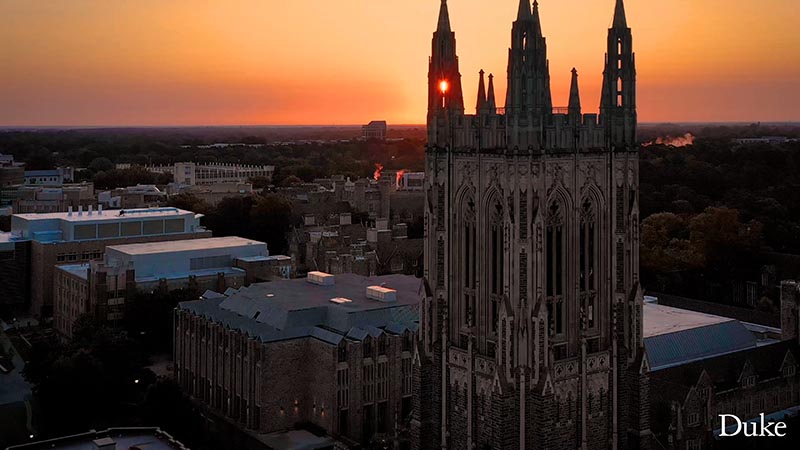
This element includes an iconic aerial image of Duke, the Duke wordmark and wipes to reveal the video.
To use this element:
Place the intro one layer above your video piece on your editing timeline.
Extend your first video shot by about one second beneath the intro.
Watch the start of you video to ensure there is no black between the intro and start of your piece. If there is, extend the first shot further to ensure a smooth transition.
There’s no music with the introduction. Incorporate the music bed or audio track from your piece.
Recommended uses: Duke events, programs, courses, how to videos or any video that needs a Duke scene setter. This intro should be used with videos that will primarily have an external audience.
Duke Introduction with no background
This element is a transparent overlay that animates the Duke wordmark on and off screen.
To use this element:
Import the “Duke Intro (no background).mogrt” into your Premiere Pro Essential Graphics. If you are using Final Cut Pro, install the graphics package.
Place the mogrt overlay where you’d like it to appear towards the beginning of your video.
The overlay color and length can be adjusted if needed. White or Duke blue (#012169) the preferred colors for the title.
There’s no music with the overlay. Incorporate the music bed or audio track from your piece.
Recommended uses: Feature videos that begin with compelling visuals of campus, research or activity.
Video Outro
The animated video outro will end every video. This element wipes to close the piece and includes the text “This is Duke.”
To use this element:
Place the outro one layer above your video piece on your editing timeline and make sure the outro lined up at the very end on your video.
Extend the final video shot by one second beneath the outro.
Watch the end of the video to ensure there’s no black between the end of the video and when the outro animates on screen. If there is, extend your final shot further until there is a smooth transition.
There’s no music with the outro. Incorporate the music bed or audio track from your piece.
Lower Thirds/Name Supers
Customizable lower thirds complement the video introduction and outro with similar color, style and theme. When using the lower thirds, users will have the ability to add in the name and title of subjects who need to be identified in the video piece.
To use this element:
Import the “Duke_LT_BG_left.mogrt” or “Duke_LT_BG_left.mogrt” into your Premiere Pro Essential Graphics. If you are using Final Cut Pro, install the graphics package.
Place your lower third on the video layer above the subject in your timeline.
Click once on the lower third on your timeline to customize within the Essential Graphics panel. You will have the ability to customize name, title, colors, and fonts. Only use Duke approved colors and fonts which can be found in the brand guide. We recommend using Open Sans, Lato or Garamond.
Text Box
A customizable text box allows users to add explain visuals appearing on screen. Depending on the length of the description, the text box can grow or shrink.
To use this element:
Import the “Duke_text_callout.mogrt” into your Premiere Pro Essential Graphics. If you are using Final Cut Pro, install the graphics package.
Place the Text Box lower third on the video layer above the subject in your timeline.
Click once on the text box on your timeline to customize within the Essential Graphics panel. You will have the ability to add in your own text and adjust the opacity of the text box.
Recommended uses: Videos that have little to no narration, videos that require text to explain a certain visual on screen.
Wordmark
A small Duke wordmark should be placed in the lower right-hand corner of every Duke video.
To use:
Import the “Duke watermark_small_corner.mogrt” into your project. If you are using Final Cut Pro, install the graphics package.
Place the watermark above your video on your timeline and extend it across your entire video piece. Note- The graphic should be above your video layer but directly below your intro and outro.
Match the location of the interview with its topic.
Shoot in a deep room so the background blurs out.
Look for interesting compositions by using dramatic perspectives in the backgrounds. Walls should recede into the background at an angle.
Remove visual clutter from the background but leave in objects that are relevant to the interview and/or provide visual interest without being a distraction.
Positioning People and Lights
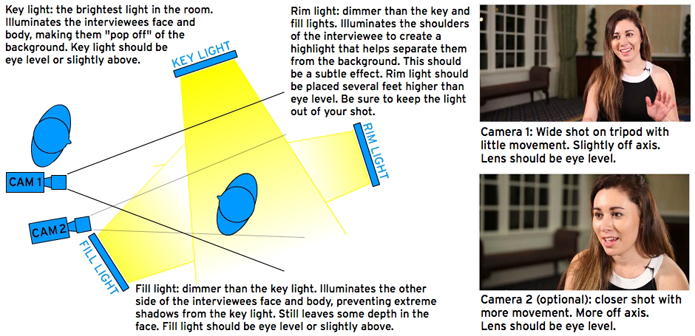
Set up the interviewer to be slightly off to the left or right of the camera, depending on which way you want the interviewee looking.
Set up the interviewee using the rule of thirds: divide the screen into thirds vertically and align the interviewee along one of the dividing lines, leaving more room in the direction he is looking.
Using a three-point light kit, set the key light to illuminate the side of the face with more breathing room, the fill light on the side closest to the edge, and the rim light behind the interviewee angled down to illuminate their head and shoulders.
Make sure the interviewee is the brightest element of the shot.
Positioning the Second Camera
When using two cameras, set Camera 2 closer and a little more off-axis than Camera 1. Make sure both cameras are on the same side of the interviewee, either left or right. Don’t put one on each side. This is called breaking the axis and it can be jarring for the viewer.
Selecting your Camera and Settings
When possible, shoot with a Canon 5D Mark III or a comparable DSLR camera with nice lenses.
Set the camera to shoot 1080p (1920×1080) at 24fps.
Set custom white balance equally on both cameras.
Shoot with a wide enough aperture to reduce depth of field and blur the background.
Set focus to manual. (The 5D automatically shoots with manual focus.)
Ensure the depth of field is deep enough to keep the subject in focus if they lean in or out (between F4 and 10, generally).
Extra credit: If you own your camera (not renting), download the “flat” cinestyle color profile and shoot neutral. This will give the editor full control over all color correction in post production.
Camera Movement
Camera 1 should be set on a fluid head tripod and the operator should utilize a very minimal “floating” technique.
Camera 2 should be set on a fluid head tripod and the operator should utilize a very minimal “floating” technique.
Alternatively, Camera 2 could be on a shoulder mount with very little movement.
Audio
For stationary interviews, use a wired lavaliere mic. For interviews in which the interviewee is moving, use a wireless lavaliere mic. Hide the wire underneath the interviewee’s clothing.
Turn off all devices that beep or buzz.
DSLRs don’t record high quality audio, even if you use a nice XLR mic and plug it into the mini mic port on the DSLR. So, make sure that audio is being sent to a separate mixer or recorder like the Zoom H4N or Tascam.
Make sure someone is always monitoring audio to make volume adjustments, catch any background noises that are going to be a problem, and to make sure the mic doesn’t drop out (batteries can die, and equipment can malfunction).
For outdoor interviews, watch out for wind! It can sound much louder through a mic than to the ear.
Les Todd (retired from Duke Photography July 2016) lestodd.photoshelter.com Ltodd1000@gmail.com (919) 725-3637
Duke references: Deborah Hill, Tori Hall, Bryan Roth, Jenna Brown, Aaron Wellborn, Shawn Rocco, Sally Hicks, Steve Hartsoe, Jeannine Sato, Mandy Dixon, Susan Kauffman, Paul Grantham
York Wilson Photography yorkwilsonphoto.com
(919) 368-5079
Duke references: Sally Hicks
Duke Communicators are invited to submit the names of photographers to be considered for this list. We also welcome feedback about your experiences working with freelance photographers. Suggestions will be reviewed quarterly along with feedback and the list will be updated accordingly. Please email input and suggestions to photos@duke.edu. Thank you for sharing your input and helping to make our network even stronger.
These guidelines help Duke communicators apply Duke policies to social media. Questions? Email socialmedia@duke.edu.
Duke Health employees should follow Duke Health-specific standards.
Before You Create a New Account
Avoid creating new accounts unless absolutely necessary.
Best practice: Partner with existing major accounts (e.g., @DukeU, schools, departments) and share content there for bigger impact.
Maintaining an account requires dedicated staff and multiple posts per week .
Units and departments are responsible for ensuring that content posted by, or on behalf of, any unit or department adheres to all Duke University policies and to appropriate laws that govern the public dissemination of information. To that end, units and departments should periodically review the guidelines for social media and consult with the Office of Communications, Marketing, and Public Affairs if they have questions about their implementation:
Key Principles
Remember you are representing the Duke brand.
Have a strategy:
Who is your audience?
What do you want them to do?
Is social media the best way to do it?
Everything is public: Posts live forever and are searchable and shareable.
Duke University reserves the right to hide or delete off-topic, vulgar or abusive comments and hate speech. We do not permit comments selling products or promoting commercial ventures. Students should adhere to the Duke Community Standard when posting or commenting on social media. Posted comments and replies do not necessarily reflect the opinions or policies of the university. All content and posts are bound by the individual platform’s terms of service. If you have any concerns about the content posted on Duke University’s social media, please email us at socialmedia@duke.edu. We welcome all of your feedback.
Branding and Graphics
Representing the Duke brand on Social Media
When you post to social networks from an official Duke University account, you are representing the Duke brand. Here are some simple guidelines to help put your best foot forward. If you have specific questions on branding, please contact socialmedia@duke.edu.
Begin with “Duke” when creating a name for your Facebook Page, Twitter account or other social media presences
Use of the Duke logo is reserved for Duke’s institutional departments, centers and units
Where available, departments, schools and units should use their official logos and iconic images to build their profiles
Please follow Duke’s policies and procedures regarding copyright, privacy and sharing of information.
Images for Albums and Sharing
Duke’s Asset Management System (NETID required) is a wonderful collection of thousands of current photos and videos of Duke’s campus, programs, people and more. It is refreshed regularly with community-sourced images as well as new content captured by the University Communications team.
When choosing photography for your project, a combination of thematic stock photos and custom photoshoots should be able to provide all necessary images. When choosing (and shooting) images, look for:
interesting, asymmetric compositions
“white” or negative space
utilize close crops
diversity of subjects both in race and gender
subject matter of off-campus images should be topical
Favor classrooms, students, natural elements, and topical or global imagery over repetitive campus architecture or generic stock shots.
Photography Resources
Duke’s Video and Photo Library (NetID required) is a wonderful resource with thousands of images. It is refreshed regularly with community-sourced photos as well as new imagery captured by Duke Communications, Marketing, and Public Affairs.
Duke University Archives Yearlook Flickr site is a great resource for archival photos of Duke through the years.
Don’t just save your photos on your hard drive! MediaBeacon is Duke’s secure, centralized system for storing, searching, and sharing media assets. It eliminates the risks of local drives, offers backups through OIT, and makes files easy to find and reuse. Upcoming features include a mobile app and integrations with Duke systems. Log in to MediaBeacon once your account is confirmed.
Portraits
Portraits should be forward-facing with the following attributes:
Intimate & authentic
Clean and simple composition
Soft background
Looking toward camera
Relevant props & environments
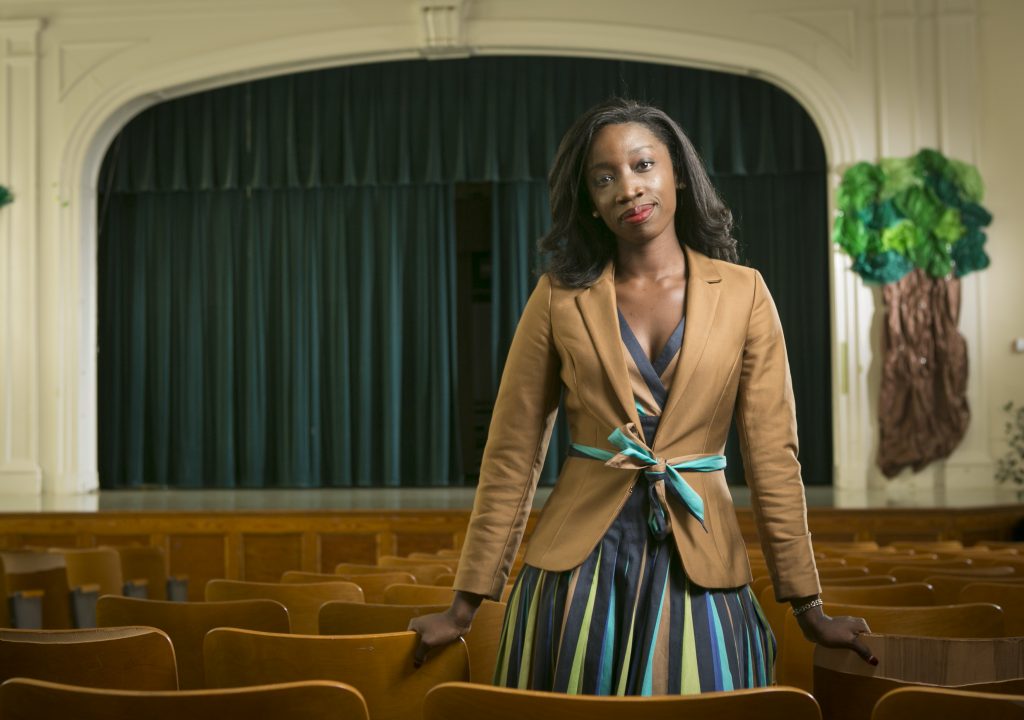
Alumni portraits should be off-campus (to illustrate our impact in the real world) and, when at all possible, include props from their industry. When portraits occur on campus, choose interesting backgrounds such as artwork or the natural world.
Other Things to Consider
Focus
Create a point of focus such that the background blurs a bit, but avoid the image getting too “soft.”
Expression
Can be anything, really. Just try and capture your subject at ease, with their most natural expression.
Background
Be creative, look for backgrounds that are graphic, quiet, or artful.
Proximity
Try the extremes; either really close or really far can be unusual and wonderful.
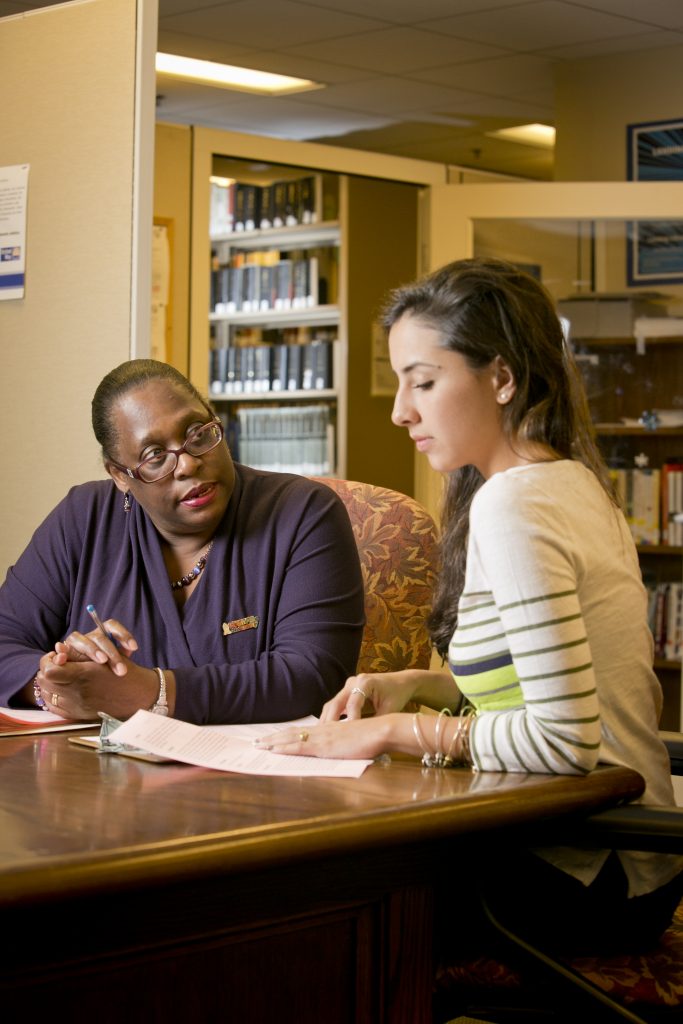
Candids/In-context
Effective photographs will have the following attributes:
Action, reaction and interaction
Showing community
Unusual angles & points-of-view
Context & space
Immersive
Photographs that make the user feel as though they are a part of the action can be very impactful. It gives the viewer a sense of being a part of the setting rather than simply viewing.
Successful event photography will capture the unique aspects of the event along with the sponsoring unit’s brand/mark. It may seem like photos of speakers, lectures or symposiums provide context but the goal is to differentiate it from all other photos of event speakers. A photographer should seek opportunities to capture interaction of the speaker(s) with the audience and shoot from different angles.
Scenics & Interiors
Duke is a beautiful place. When considering scenic imagery, consider the time of day for lighting, the traffic pattern of the area and if there may be any zones with special privacy considerations (i.e. the Health System).
Time of day & light
Traffic & activity
People inhabiting the scene
Leading lines & framing
Scale, depth and layers
Incorrect Use of Imagery
Please keep these guidelines in mind when selecting images:
Use stock photos sparingly and avoid those that have a generic feel
Use filters sparingly and avoid distorting the natural look of photos
Obtaining Signed Releases
Most campus spaces are public, so photos/videos there don’t need consent forms. Signed releases are required for formal shoots or when individuals are clearly identifiable, especially if names are used. Group or crowd shots without identifiable subjects generally don’t need permission.
To maintain patient privacy and ensure HIPAA compliance, any photography or videography in or near the Health System requires permission from the Health System. Please contact Duke Health News & Media for more information.
Releases should be stored WITH the image file and not exist separate from the photo.
Can I use that picture?
Always avoid pulling photos straight from Google or another online source – it’s best to either take your own photo, confirm usage rights, or use Duke’s library. Using unlicensed images can lead to serious financial and legal consequences.